Tingdong for iPhone and iPad
Voice recorder with transcription: record it, get the notes
Tingdong’s Smart Recorder is a voice recorder for iPhone and iPad that transcribes automatically: you record, and when you stop, you get the text and the notes.

Free trial · No account or card · One app for iPhone and iPad · Android 12 or later
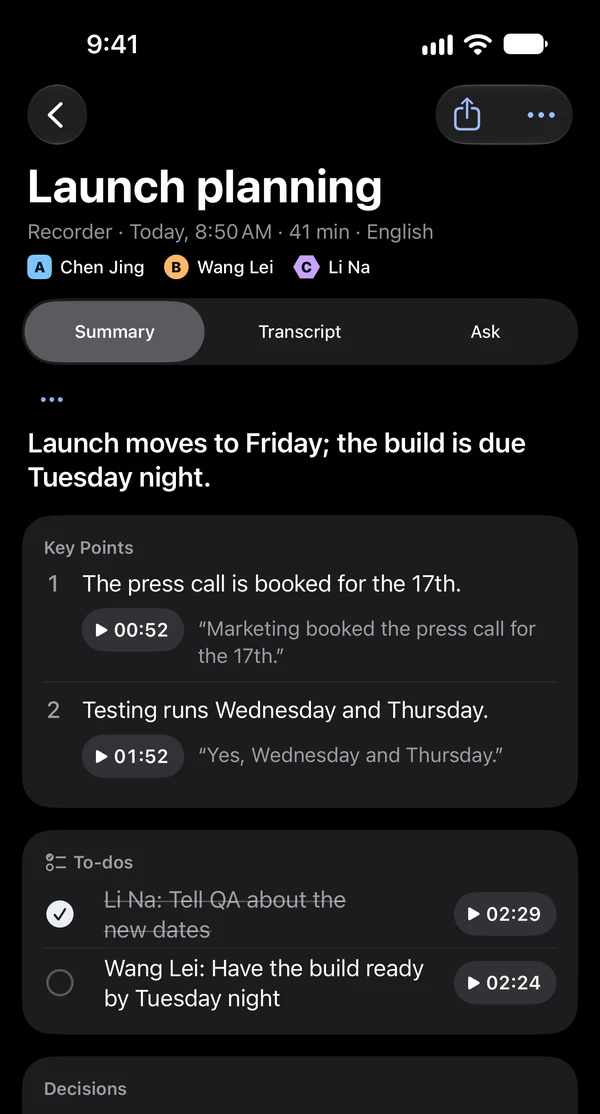
Record a meeting, a class, an interview or a voice note on your iPhone, with the screen locked if you like. When you tap Done, Tingdong transcribes the recording, labels the speakers and writes notes: a summary, key points with times, to-dos and decisions. It detects the language on its own, in 60+ languages, so you never choose one first. Already have a recording? Import the audio file, and it gets the same transcript and notes.
Updated 2026-11-17
How to set it up
- 1Install Tingdong on your iPhone or iPad
Get it free on the App Store. There is no account to create, and the free trial needs no card.
- 2Switch to Recorder and record
In Live, switch to “Recorder” and tap record. Live captions can stay on or off, and the recording keeps going with the screen locked. You can also start it from Control Center or the Action button.
- 3Tap Done and read the notes
Tingdong transcribes the recording, labels the speakers and writes the summary, key points and to-dos. Search the memory later, or ask it a question.
What you get when you stop
Tap Done and Tingdong turns the recording into a memory: the full transcript with each speaker labeled (up to 15 speakers in each segment), then a title, a summary, key points with times, to-dos, decisions, open questions and, for long recordings, chapters. Organizing needs a connection and uses credits, like captions.
Transcribe audio you already have
Import an audio file from the Files app, or share one to Tingdong from Voice Memos, another recorder app or a call recording saved on your iPhone. It becomes a memory like any recording: transcript, speakers, summary and to-dos.
Search it, ask it, share it
Every recording is saved on your iPhone or iPad as a memory. Search your memories, or open one and ask about it in its Ask section, for example “What did we agree on the budget?”: the answer shows the lines it used. Share a summary or a transcript as Markdown or text, or a transcript as SRT subtitles.
Languages and accuracy
Tingdong detects the language on its own in 60+ languages, including English, Chinese, Spanish, Japanese, Arabic and Hindi, so you don’t pick one before you record. Tingdong AI is more accurate than Apple’s on-device transcription: it uses large speech models, not a small model built into your device.
On Apple Watch
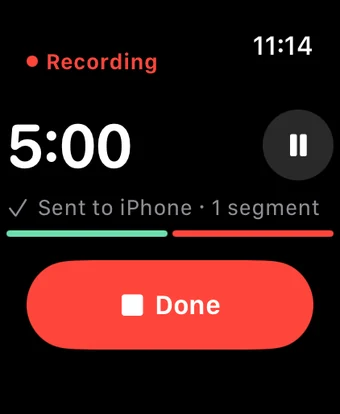
With Apple Watch, one tap on the watch starts a recording. It goes to your iPhone, where Tingdong turns it into a transcript and notes. More in record on Apple Watch.
On a Mac or Windows PC
On a Mac or a Windows PC, Tingdong for Mac and Windows can import an audio or video file and turn it into text (“Import a recording or video and turn it into text”; Windows: “Import a Recording or Video”); the file is used only to make the transcript and is deleted from the server afterwards. It can also keep the recording of a live session: “Save recordings” is off until you turn it on, you choose once when you set up Tingdong, and you can change it later in Settings › Memories.
On Android
Tingdong for Android records and transcribes too: tap record, and when you stop, it writes the transcript with the speakers labeled, a summary and to-dos. You can also import an audio file.
Privacy first
Your recordings, transcripts and notes are saved only on your device. Tingdong never stores your content or uses it for training. Your data belongs to you. To be transcribed and organized, a recording is sent to Tingdong: speech goes to a third-party speech recognition service to be turned into text, and the copy sent for transcription is deleted once it is transcribed. Details: privacy policy.
Frequently asked questions
Is there a voice recorder app that transcribes automatically?
Yes. Tingdong’s Smart Recorder on iPhone and iPad records, and when you stop, it transcribes the recording, labels the speakers and writes a summary, key points and to-dos. It detects the language on its own, in 60+ languages.
How do I transcribe an audio file I already recorded?
Import it into Tingdong from the Files app, or share it from Voice Memos or another app. Tingdong turns it into a transcript with the speakers labeled and the same notes as a new recording. Organizing needs a connection and uses credits.
Can it record with the screen locked?
Yes. Start recording in Tingdong and lock your iPhone: it keeps recording, and the Lock Screen and the Dynamic Island show the recorder with Pause. You can also record on Apple Watch.
Is it free?
You can download it free and try it with a free trial, with no account or card. After that, you choose a plan or buy credits in the App Store, which shows the price for your country.
Does Tingdong keep my recordings or use them for training?
No. Your recordings, transcripts and notes are saved only on your device. Tingdong never stores your content or uses it for training. Your data belongs to you. A recording is sent only to be transcribed and organized, through a third-party speech recognition service, and that copy is deleted once it is transcribed.
Is there an Android version?
Yes. Tingdong for Android records, transcribes and writes notes the same way, and it can import audio files. It is a separate app on Google Play, with its own plans and free trial.
Can I transcribe an audio or video file on my computer?
Yes, with Tingdong for Mac and Windows: import a recording or a video, and it becomes a transcript saved on your computer. The file is used only to make the transcript and is deleted from the server afterwards.
Record your next meeting or class
Free trial · No account or card
On a Mac or a Windows PC? Tingdong for Mac and Windows captions what your computer plays, and on the Mac, your calls.