Meeting translator for in-person and hybrid meetings
Updated 2026-10-20
Put the Mac on the table, press Start, and what is said appears in your language as it is spoken. For a meeting where people sit in the same room — a client visit, a negotiation, a project review with a supplier, a conference table with a few colleagues dialled in — run Tingdong on your Mac and let it listen to the room. It hears the people at the table through the Mac’s microphone, works out which language each of them speaks, labels every speaker and shows live translated subtitles while they talk. Nobody else installs anything, and no bot joins any call.
How to set it up
- 1Open Tingdong, pick “Live Subtitles”, source “Room only”
Put the Mac in the middle of the table, or use any microphone you select in System Settings → Sound → Input. In a hybrid meeting, with some people joining on Teams, Zoom or Meet on the same Mac, choose “Room + Mac audio” so Tingdong hears the room and the call together.
- 2Press Start when the meeting begins
Subtitles appear while the sentence is still being spoken, the original and the translation together, each voice labelled — Speaker 2, Speaker 3. Tingdong detects the language by itself and follows someone who switches mid-sentence.
- 3On a Mac, for the whole table, click “Big-screen subtitles”
The subtitles fill the meeting-room TV, a projector or a second display in large type on a dark background, with nothing else on screen; press Esc to leave. If you would rather listen than read, turn on “Read aloud” and hear the translation in your language.
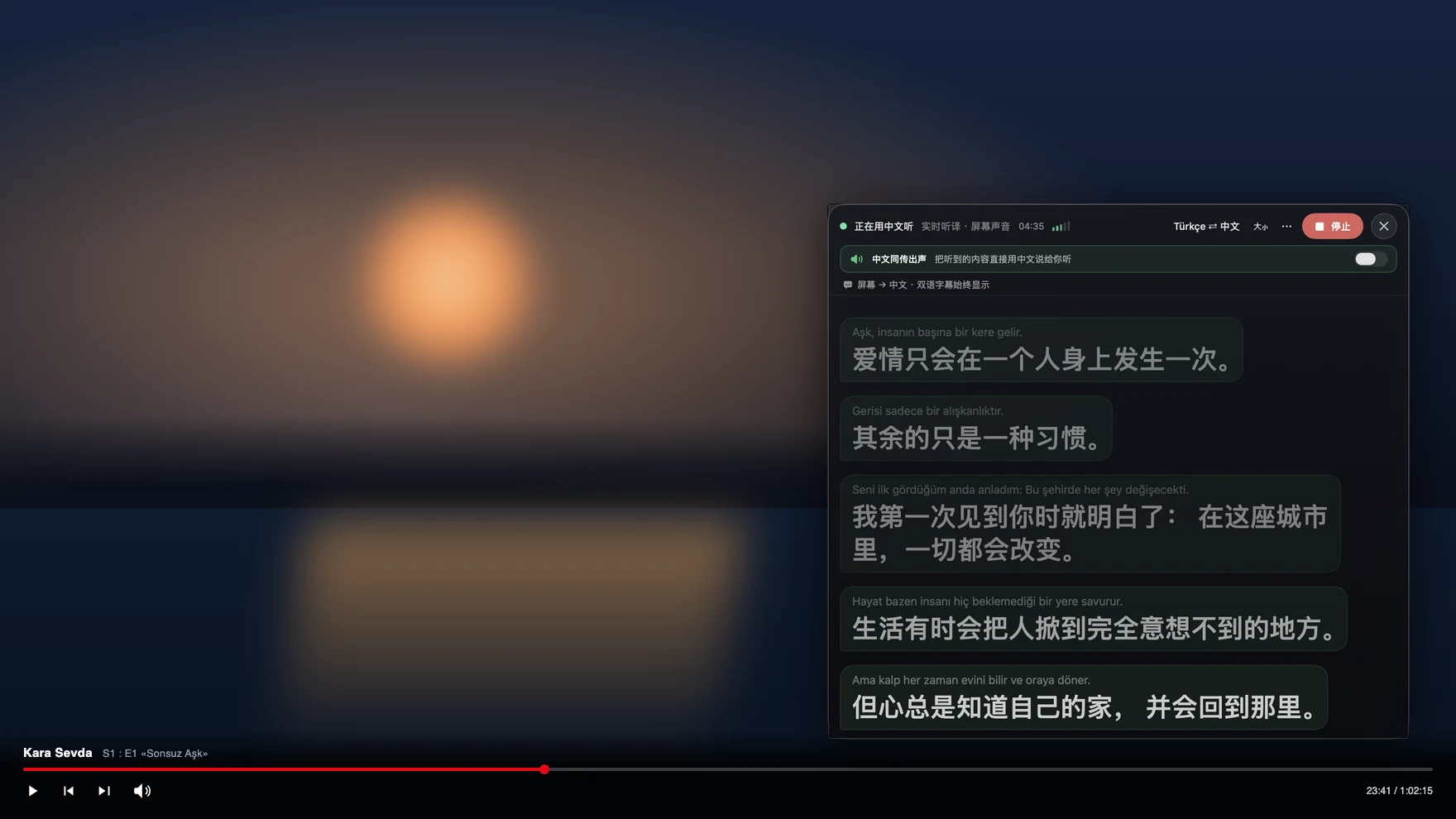
Where to put the Mac in a meeting room
Recognition can only be as good as what the microphone hears, so where the Mac sits matters more than any setting. At a table for four to six, a MacBook in the middle hears everyone; at a long boardroom table, put it near the people whose language you need, or plug in a USB conference microphone and select it in System Settings → Sound → Input. Overlapping voices are the hard part: Tingdong labels each voice, but words spoken over each other can end up under one label, so a meeting where people take turns reads more clearly. The audio is sent live for recognition and translation and is not stored; the transcript is saved only on your Mac. For a talk or a class, see live translation for lectures; for a meeting you only join online, Teams and Zoom.
On a Windows laptop
In Tingdong for Windows, choose “Room”: it listens through the laptop’s microphone, and what the people at the table say appears in your language as they talk. For a meeting you follow on the laptop itself, choose “Computer audio” instead (more in translating the audio playing on your PC). Big-screen subtitles are not in the Windows version: they are a Mac feature, in the App Store version and the Website version alike, so on a Windows laptop the subtitles stay on your own screen.
Frequently asked questions
Can everyone at the table read the subtitles?
Yes, on a Mac. Click “Big-screen subtitles” and they fill the room’s TV, a projector or a second display in large type on a dark background, with no window frame or buttons around them; press Esc to go back. Nobody needs an app or a phone. In a hybrid meeting, share the subtitle window in Teams or Zoom and the people dialled in read the same subtitles.
How does it tell who is speaking?
Tingdong labels each voice — Speaker 2, Speaker 3 — so a meeting with several people stays readable. When people talk over each other, the overlapping words can end up under one label, and a new voice can take a moment before it gets its own. It reads more clearly when people take turns.
What if the meeting switches between languages?
Nothing to set. Tingdong detects the spoken language on its own, sentence by sentence, and follows someone who switches in the middle of a sentence, so a meeting held in two languages, or in a mix of both, needs no setup. You choose the language you read; everything said is translated into it.
Is the meeting recorded or stored?
No. The audio is sent live over the network for recognition and translation and is not stored; the transcript of the subtitles is saved only on your Mac. Without an internet connection Tingdong shows no subtitles rather than guessing. Nobody else in the room sees anything unless you put the subtitles on a screen.
How much does a one-hour meeting cost?
Subtitles are 1 credit per minute, so an hour-long meeting is 60 credits. Read aloud is 8 credits per minute, billed only while someone is actually speaking. Every new Mac gets a free trial of about 100 minutes of subtitles, with no sign-up and no card.
Try it on your next video, meeting or call
Download free for macOS Get it for Windows
Free trial: about 100 minutes of subtitles · No signup or card
Windows 11 (subtitles and Read aloud only, nothing sent into calls)