Best live captions apps for Mac and Windows
Updated 2026-10-20
Seven ways to put live captions on a computer screen, each checked against the vendor’s own pages. Short answer: if the speech is in a language your computer’s built-in captions support and you only need it written down, start with what is free — macOS Live Captions on a Mac with Apple silicon, Live Captions on Windows 11, or Live Caption for audio playing in Chrome. They caption on the device, and the Mac and Windows ones work offline. You need something else when the language is not on their list, when one meeting or lecture moves between languages, or when you want the captions in your own language. We make Tingdong, one of the seven, so every fact about the others comes from their own pages (read 20 October 2026; NotchLive in August 2026), and each is listed with the job it does best.
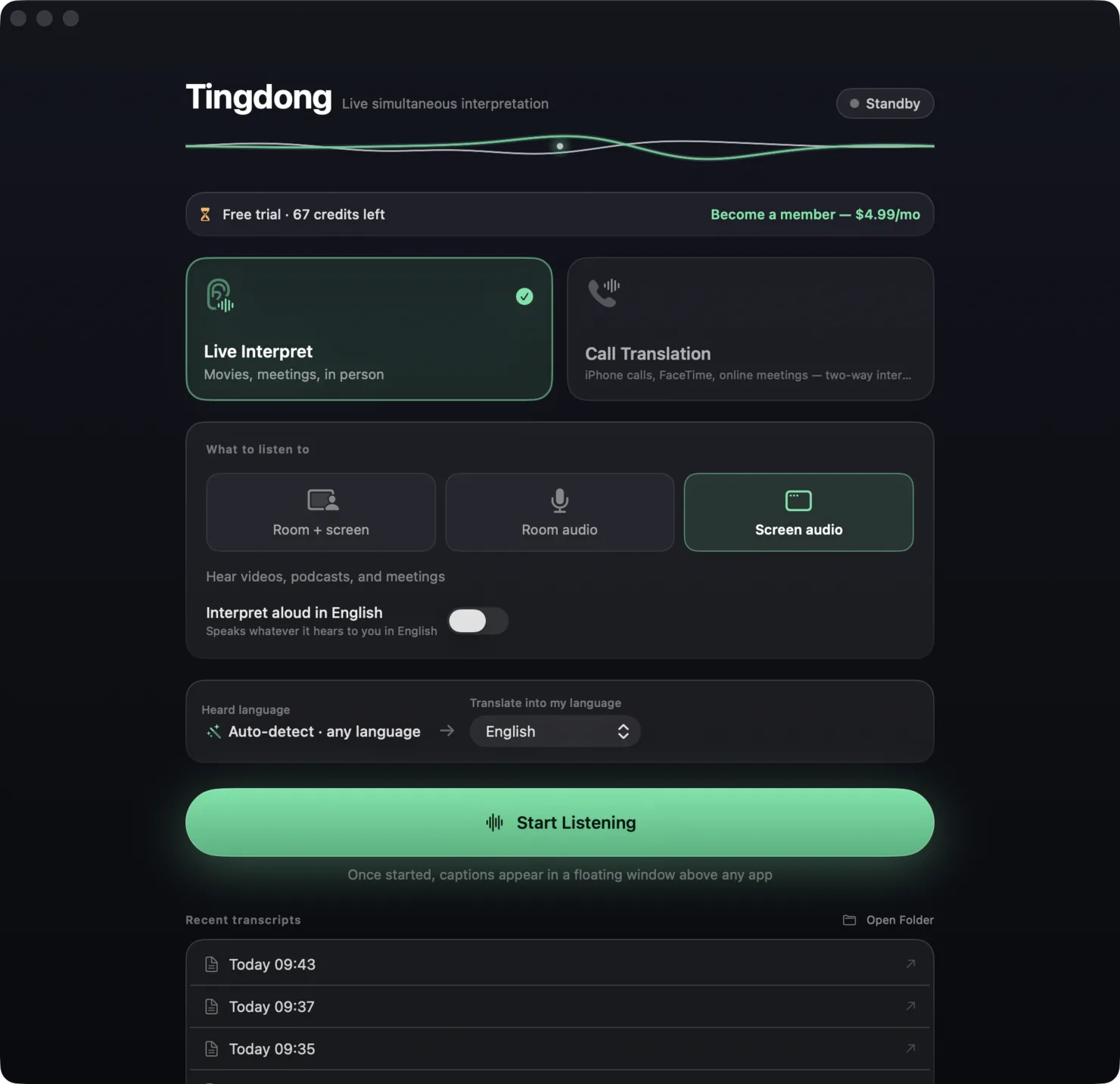
Side by side
| App | Price | Platforms | Captions in the spoken language | Translates into | Where it runs |
|---|---|---|---|---|---|
| Tingdong | $5.99/month after a free trial of about 100 minutes of subtitles | macOS 15 or later; Windows 11 (subtitles and Read aloud only, nothing sent into calls) | 60+ languages, detected automatically; on a Mac, “No translation” shows only the original | Any of 60+ | Cloud: needs a connection; audio is not stored |
| macOS Live Captions | Free, built in | Mac with Apple silicon | 8 languages (Apple’s list, read 9 October 2026) | Does not translate | On the device |
| Windows Live Captions | Free, built into Windows 11 | Windows 11, version 22H2 and later | 21 languages and variants (our count of Microsoft’s list) | English or Chinese (Simplified), only on Copilot+ PCs with Windows 11, version 24H2 or later | On the device; works offline |
| Chrome Live Caption | Free, built into Chrome | Chrome on Windows, Mac, Linux and ChromeOS | English by default, more as downloadable language packs; audio playing in Chrome only | 100+ languages with Live Translate | Captions on the device; Live Translate sends captions to Google |
| Otter | Free: 300 transcription minutes a month; Pro $8.33 a month billed yearly | Web, Mac and Windows desktop app, iPhone, Android, Chrome extension | 6: English, Spanish, French, German, Japanese, Chinese (Simplified) | No live translation (Otter Chat translates afterwards) | Not stated; a bot can join Zoom, Teams and Meet, or the desktop app records without one |
| NotchLive | Captions free; translation in Pro | Mac | 90+ | 20 languages (Pro) | On the device (Whisper) |
| LiveCaptions | US$4.99 a month for 10 hours, $9.99 for 28, $19.99 for 60; 20-minute trial | Mac (Apple silicon, macOS 14.2 or later), Windows 10 and 11 | Not listed | 60 target languages | Cloud; audio not stored |
Where a row says on-device or offline: Tingdong runs recognition and translation on a dedicated streaming engine, not on your Mac. Why that is the trade we chose — model size, 60+ auto-detected languages, simultaneous pacing — is on one page: why not on-device, and why it costs money.
Which one is for you?
Same-language captions in a supported language, for free: the one built into your system — macOS Live Captions or Windows Live Captions — or Chrome’s Live Caption for audio in the browser. If audio must not leave the computer, these and NotchLive are the on-device choices. A searchable transcript and meeting notes in English or one of five other languages: Otter. Translated captions as an overlay, billed by the hour: LiveCaptions. Tingdong fits when the built-in list does not have the language, when one meeting or lecture moves between languages — it detects the language sentence by sentence, with no setting to change — or when you want the captions in your own language; the translation starts before the sentence ends. It also listens to the room through the microphone, for a lecture or a meeting at a table. Our weaknesses: it needs an internet connection, and it is paid after the free trial.
Live captions for lectures, accents and fast speakers
For a class or a talk in the room, put the laptop on the desk and caption the microphone: on a Mac, choose the microphone as the source; on a Windows PC, choose “Room” in Tingdong for Windows. If the lecture is in a language you understand but the speaker is hard to follow — a strong accent, fast speech, a poor microphone — the Mac’s “No translation” mode writes down what is said in the language it is spoken (live transcription on a Mac); on Windows, the original appears above each translation. Windows Live Captions can caption the microphone too: Microsoft’s page says microphone audio is off each time Live Captions starts, and you turn on “Include microphone audio”. More on rooms and lecture halls: live translation for lectures. Microsoft’s feature in detail: Windows Live Captions vs Tingdong.
Frequently asked questions
Which live captions app is free?
macOS Live Captions, Windows Live Captions and Chrome’s Live Caption are free and built in. Otter has a free tier with 300 transcription minutes a month, and NotchLive’s captions are free. LiveCaptions has a 20-minute trial, and Tingdong a free trial of about 100 minutes of subtitles with no sign-up or card.
Can live captions translate?
Windows Live Captions translates only into English or Chinese (Simplified), and only on Copilot+ PCs. Chrome’s Live Translate translates the captions of audio playing in Chrome. macOS Live Captions does not translate. LiveCaptions and Tingdong translate the audio the computer plays or the microphone hears.
Which ones work offline?
macOS Live Captions, Windows Live Captions, Chrome’s Live Caption (the captions, not Live Translate) and NotchLive run on the device. LiveCaptions and Tingdong run in the cloud and need a connection.
Do they work in Zoom, Teams and Meet?
Windows Live Captions captions any audio that passes through the PC; Chrome’s Live Caption only audio playing in Chrome, so a meeting in the browser but not the desktop app. Tingdong and LiveCaptions caption the desktop meeting apps without joining the meeting. Otter can send a bot into the meeting or record from its desktop app.
Why should I trust a list written by Tingdong?
Every cell about another tool comes from that vendor’s own page, and the verdict sends you to the free, built-in options first when they fit. If a fact here is out of date, tell us at hi@tingdong.app.
Try it on your next video, meeting or call
Download free for macOS Get it for Windows
Free trial: about 100 minutes of subtitles · No signup or card
Windows 11 (subtitles and Read aloud only, nothing sent into calls)