Live Transcription & Live Captions for Mac
Updated 2026-10-09
Choose “No translation”, press Start, and what is said appears as text in the language it is spoken. “No translation” is the mode of Tingdong that writes down what your Mac hears and does not translate it: a meeting, a lecture, a video or the people in the room appear as live subtitles in the original language. It works out the language by itself, labels each speaker, and saves every session on your Mac, so you can read it back or export it afterwards. When you want a translation again, pick a language in the same menu.
How to set it up
- 1Open Tingdong, pick “Live Subtitles” and a source
“Mac audio only” for a meeting app, a browser or a player; “Room only” for a lecture or a conversation through the microphone; “Room + Mac audio” for both at once.
- 2At the top of the language menu, choose “No translation”, then press Start
The language button in the top bar now reads “No translation”. The subtitles show only the original line, as it is spoken; the Original and Read aloud buttons are hidden, because there is no translation to show or read.
- 3Read it back or export it
Every session is saved on your Mac. Open “Past Sessions”, find the session marked “No translation”, and choose “Export .md” for notes or “Export .srt” for a video editor or player.
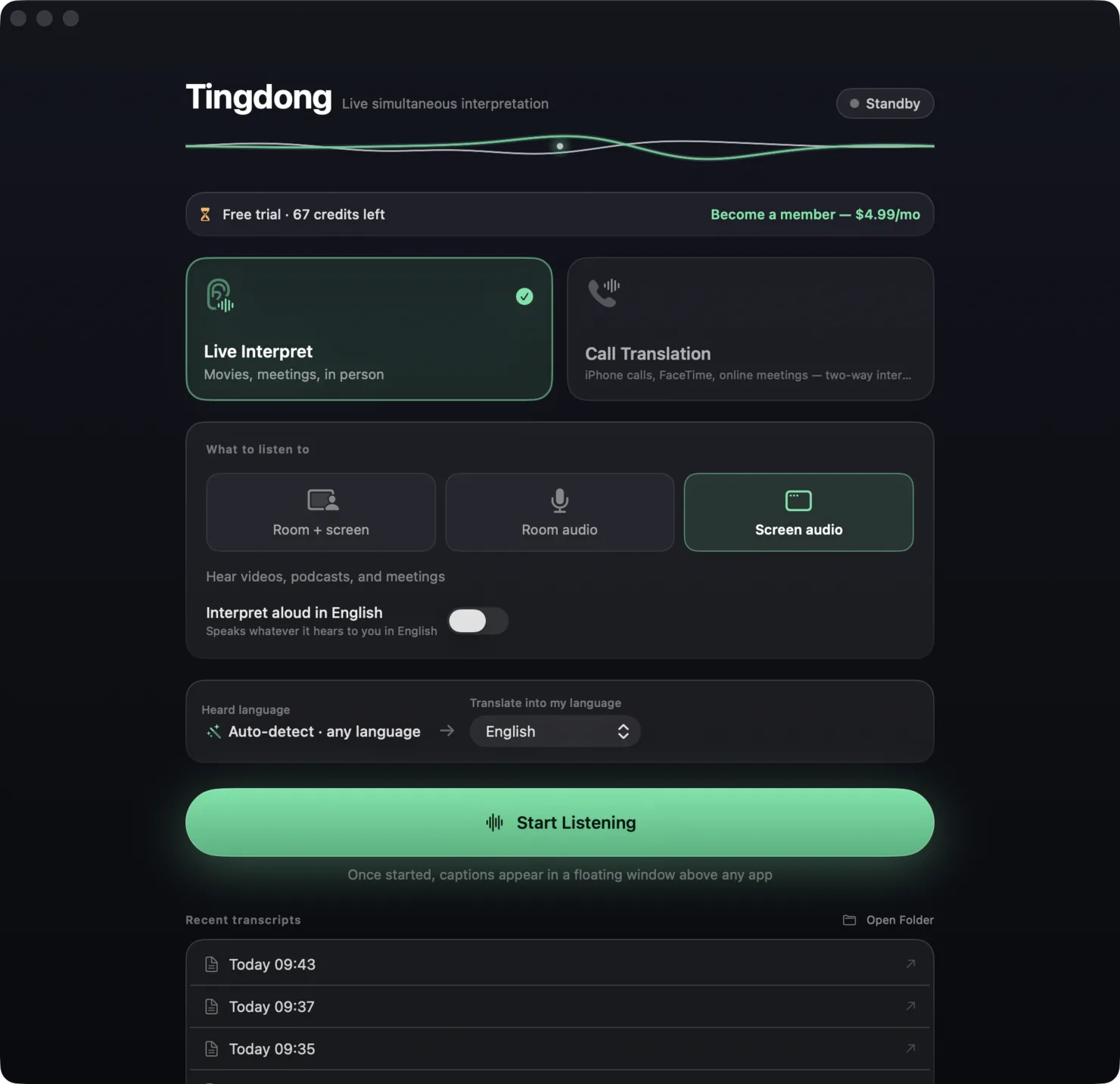
Live captions without translation, compared with the captions already on your Mac and in your meeting app
| macOS Live Captions | Captions in Meet, Teams and Zoom | Tingdong (No translation) | |
|---|---|---|---|
| Where it works | Any app’s audio, or the Mac’s microphone; you switch between the two | Inside that app’s own meetings | Anything your Mac plays, the room through the microphone, or both at once |
| Languages | 8, per Apple’s macOS feature availability page | Meet: 88 caption languages and variants listed, 62 of them marked beta. Teams: 57 listed. Zoom: Not stated | 60+ |
| Picking the language | Not stated | Teams: the organizer sets one spoken language for the whole meeting. Meet, Zoom: Not stated | Detected automatically, including a switch mid-sentence |
| Keeping the text | Not stated | Teams: “Teams doesn’t save captions” (meeting transcription is a separate feature). Meet, Zoom: Not stated | Every session saved on your Mac; export .md or .srt |
| Where the audio is processed | “Audio is processed on device.” Macs with Apple silicon only | Teams: “in the geographical region where your organization is based”. Meet, Zoom: Not stated | In the cloud, so it needs a connection; the audio is not stored |
| Cost | Free, part of macOS | Meet: “All users can use captions”. Teams, Zoom: Not stated | 1 credit per minute after the free trial, the same as translated subtitles |
Which one should you use?
If you need it offline, or it must cost nothing, use macOS Live Captions (it needs a Mac with Apple silicon): it is free and processes audio on the device. If every meeting you follow happens in one app, that app’s own captions are already there. Pick Tingdong with “No translation” when the speech comes from anywhere on your Mac or from the room, when a speaker changes language, or when you want the text kept and exported. Sources, each vendor’s own page, read on 2026-10-06: Apple’s Mac User Guide (Live Captions) and macOS feature availability page; Google Meet Help, “Use live captions in Google Meet”; Microsoft Support, “Use live captions in Microsoft Teams meetings”; zoom.com/accessibility.
How accurate is the transcript?
Accurate: recognition runs on a dedicated real-time streaming engine in the cloud, not on a model shrunk to fit a Mac. 60+ languages are detected automatically, even when a speaker switches mid-sentence, and you can teach it the names and terms you use. Try about 50 minutes free on your own meeting, class or video.
When you want the translation back
Pick any language in the same menu, even mid-session, and Tingdong translates again. Recognition and translation run in one stream, so the translation starts before the sentence ends. The meeting background, terms and fixed translations (source=target) you add are used by both recognition and translation. Captions without translation and translated subtitles cost the same: 1 credit per minute.
Frequently asked questions
The meeting is in English, or in my own language, but accents and speed make it hard to follow. Does this help?
That is what “No translation” is for, and it works the same in any of the 60+ languages: Indian, Scottish or Singaporean English on one call; Cantonese, or Mandarin with a regional accent; Spanish or Arabic from several countries; fast speakers, a poor microphone. Pick it at the top of the language menu and read what is said, as it is said, with each speaker on their own line. Nothing appears in the meeting itself: Tingdong listens on your Mac and joins nothing. For people in the room, set the source to “Room only”. Try it free on one of your own meetings.
Can Tingdong just transcribe, without translating?
Yes. Choose “No translation” at the top of the language menu and the subtitles show only what is said, in the language it is said, for meetings, lectures, videos and conversations in the room. Every session is saved on your Mac and exports as .md or .srt. It costs 1 credit per minute, the same as translated subtitles.
Which languages can it transcribe?
60+, the same languages Tingdong translates: French, German, Spanish, Japanese, Korean, Chinese, Arabic, Hindi, Portuguese, Italian, Russian, Vietnamese, Thai, Turkish, Polish, Dutch, Indonesian and 40 more. You never pick the language: it is detected automatically, and a speaker can switch mid-sentence.
How is it different from Live Captions on the Mac?
Live Captions is built into macOS, is free and processes audio on the device; Apple lists 8 languages for it, and it needs a Mac with Apple silicon. Tingdong runs in the cloud and needs a connection; it detects 60+ languages on its own, follows a switch mid-sentence, can listen to the Mac and the room at once, and saves every session for export as .md or .srt. Apple’s page does not say whether Live Captions keeps the text. If you need it offline or free, Live Captions is the better fit. (Apple’s pages, read on 2026-10-06.)
Try it on your next video, meeting or call
Download free for macOSFree trial: about 50 minutes of subtitles · No signup or card