Google Meet translated captions, without the Workspace gate
Updated 2026-10-15
Take the call or meeting on your Mac, and what the other side says appears in your language as they speak. If “translated captions” is greyed out or missing in Google Meet, it’s almost always the plan, not you: the feature is gated behind specific Workspace editions and AI add-ons, and the host’s organization controls it. Tingdong sidesteps the gate entirely — it runs on your Mac, listens to the meeting audio you already hear, and floats live translated subtitles in your language. No host license, no admin request, nothing joins the call.
How to set it up
- 1Open Tingdong, pick “Live Subtitles”, source “Screen sound”
It hears exactly what the meeting plays — every speaker, every accent, even mid-meeting language switches.
- 2Press Start and join your meeting
Floating subtitles follow the conversation in your language. Works whether or not the host enabled anything.
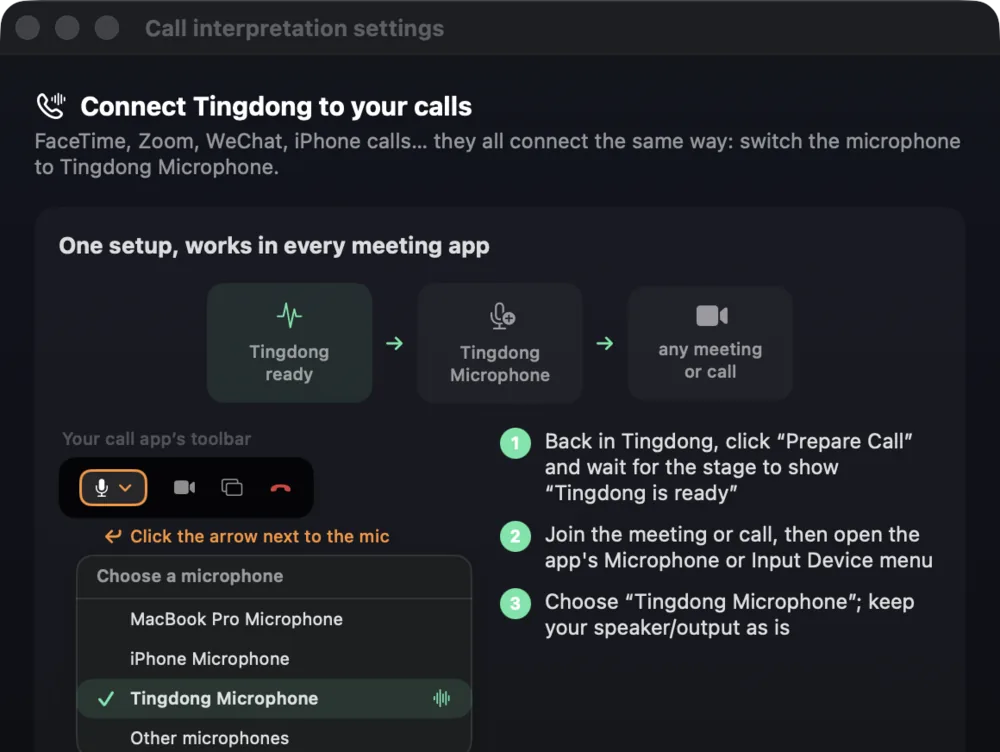
- 3Want to speak back in their language?
Switch to Call Translation and pick “Tingdong Microphone” in Meet’s mic menu — your words reach the room as translated voice. Sending your translated voice into a call or meeting through Tingdong Microphone needs the Website version for the Mac; the App Store version still subtitles what the other side says.
Works when the host can’t help
Meet’s translated captions depend on the meeting owner’s Workspace edition and admin settings; Microsoft Teams gates translated captions behind a Premium license the same way. As a participant you can’t fix either. A listener-side interpreter is the structural answer: Tingdong captures the system audio on your Mac, so it doesn’t matter which platform the meeting is on, what plan the host pays for, or whether captions were enabled at all. The transcript stays on your Mac and nobody sees an extra participant.
Google Meet on a Windows PC
On a Windows PC, open Tingdong for Windows, choose “Computer audio” and press “Start Listening”: the Meet or Teams meeting you are listening to appears in your language as live subtitles, whatever plan the host is on. Nothing is sent into the call: answering in their language through Tingdong Microphone needs the Website version for the Mac. More on “Computer audio”: translating the audio playing on your PC.
Frequently asked questions
Why are translated captions greyed out in Google Meet?
They’re limited to certain Google Workspace editions and AI add-ons, and the host’s organization must have the feature enabled. Free accounts and most standard tiers don’t get it. Tingdong runs on your own Mac instead, so no plan or host setting can grey it out.
Do I need the host’s permission?
No. Tingdong listens on your Mac to the audio it already plays for you; recognition and translation run over the network. It never joins or records the meeting — so there’s nothing for a host to enable or approve. Subtitles appear only on your screen.
Does the same trick work for Microsoft Teams?
Yes. Teams hides translated captions behind Teams Premium; Tingdong doesn’t care. On a Mac it captures system audio, so Meet, Teams, Zoom, Webex and FaceTime all work identically.
Which languages can it translate between?
60+ input languages, auto-detected — nobody has to announce what language they’ll speak. Subtitles arrive in your language; with Call Translation your replies reach the room as translated voice. (Tingdong Microphone and the translated voice: Mac Website version only.)
Try it on your next video, meeting or callTry it at your next meeting or lecture
Download free for macOS Get it for Windows

Free trial: about 100 minutes of subtitles · No signup or card
Free trial · No account or card
Windows 11 (subtitles and Read aloud only, nothing sent into calls)