Microsoft Teams live translation, without the Premium licence
Updated 2026-10-20
Join the Teams meeting, press Start, and what is said appears in your language as it is spoken. Teams has live translated captions of its own, but they come with a Teams Premium or Microsoft Copilot licence that your organisation, or the organiser’s, has to pay for and switch on. To follow a Teams meeting in another language today — as an employee, as a guest from another company, or from a link in the browser — run Tingdong next to Teams. On a Mac it listens to the meeting audio your Mac plays and shows live translated subtitles beside the Teams window. No bot joins the meeting, the other participants see nothing, and nobody has to enable anything.
How to set it up
- 1Open Tingdong, pick “Live Subtitles”, source “Mac audio only”
Tingdong hears what Teams plays on your Mac — every speaker, every accent, a language switch mid-meeting included. It works the same with the Teams app and with Teams in a browser. If colleagues in the room with you also speak, choose “Room + Mac audio” to hear both.
- 2Join the meeting and press Start
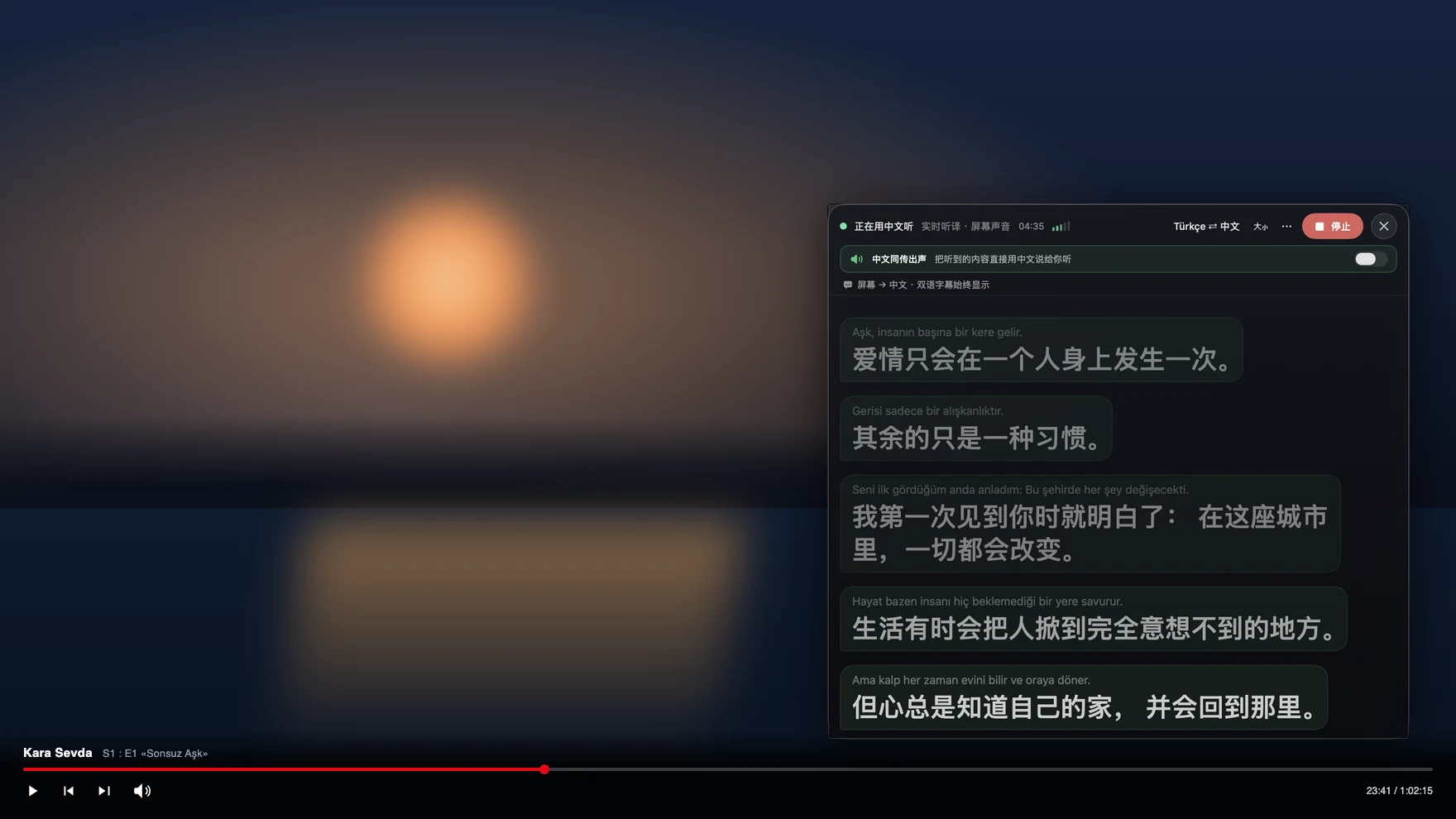
Subtitles appear while the sentence is still being spoken, the original and the translation together, each voice labelled — Speaker 2, Speaker 3. Put the subtitle window beside the Teams video; nothing in Teams needs to change.
- 3Rather listen than read? Turn on “Read aloud”
Tingdong speaks the translation in your language while the meeting goes on, which helps with headphones when your eyes are on a shared screen.
Why not ask IT to turn on Teams’ own translation?
If your organisation already has Teams Premium or Microsoft Copilot licences, use them: the captions are inside Teams, an organiser with the licence covers everyone in that meeting, and Microsoft lists 31 languages they can be translated into. The gap is everything around it: a client’s meeting where you are a guest, an organiser without the licence, a licence request that takes a quarter, a call that moves to Zoom next week. Tingdong is on your side of the call. It works from whatever Teams plays on your computer, detects the spoken language by itself, follows a speaker who switches mid-sentence and translates between 60+ languages. The audio is sent live for recognition and translation and is not stored; the transcript is saved only on your Mac. The full side-by-side is in Teams live translated captions vs Tingdong; for people in the same room, see live translation for in-person meetings.
Teams meetings on a Windows PC
On a Windows PC, open Tingdong for Windows, choose “Computer audio” and press “Start Listening”: the Teams meeting you are listening to appears in your language as live subtitles, in the main window or in a small window that stays on top of other apps, whatever licence the organiser has. Nothing is sent into the call: answering in their language through Tingdong Microphone needs the Website version for the Mac. More on “Computer audio”: translating the audio playing on your PC.
Frequently asked questions
Do I need Teams Premium or a Copilot licence?
No. Teams’ own live translated captions need Teams Premium or Microsoft Copilot: an organiser with that licence covers everyone in the meeting, otherwise only participants with their own licence see “Translate to” (Microsoft’s support page, checked 2026-10-20). Tingdong needs no licence from anyone; it works from the meeting audio your own computer plays.
Does a bot join, or do other participants see anything?
No. Tingdong never joins the meeting and never appears in the participant list. It listens to the audio your computer is already playing, so there is no bot, no consent prompt and no change to the meeting recording. The subtitles are only on your screen.
Does it work when I join as a guest or from a browser?
Yes. It does not matter how you joined — as a guest from another organisation, from a meeting link in Safari or Chrome, or in the Teams app. Nobody in the organiser’s company has to approve or enable anything.
Can I answer in their language?
On a Mac, with the Website version for the Mac: switch to “Call Translation” and select “Tingdong Microphone” as your microphone in Teams, and the others hear your voice plus a translated voice. The App Store version and the Windows app subtitle what the others say and send nothing into the meeting.
How much does an hour of Teams meetings cost?
Subtitles are 1 credit per minute, so an hour-long meeting is 60 credits. Read aloud is 8 credits per minute, billed only while someone is actually speaking. Every new Mac gets a free trial of about 100 minutes of subtitles, with no sign-up and no card.
Try it on your next video, meeting or call
Download free for macOS Get it for Windows
Free trial: about 100 minutes of subtitles · No signup or card
Windows 11 (subtitles and Read aloud only, nothing sent into calls)