Dịch thời gian thực cho kênh thoại Discord
Cập nhật 2026-10-14
Bấm Start, mở video lên là phụ đề hiện ra ngay khi người ta đang nói — bản gốc, bản dịch hoặc cả hai. Bot dịch trên Discord làm việc với tin nhắn gõ trong kênh chữ; vừa chuyển sang kênh thoại là chẳng còn gì để đọc. Tingdong chạy trên máy Mac và làm phụ đề cho kênh thoại ngay khi mọi người đang nói — từng người một, câu gốc ở trên và tiếng Việt ở dưới — còn nếu bạn cũng muốn được hiểu, chọn “Tingdong Microphone” (bản từ trang web) trong Discord là phần của bạn đi sang họ dưới dạng giọng đã dịch. Không bot nào vào máy chủ và không có gì được đăng lên.
Cách thiết lập
- 1Mở Tingdong và chọn “Nghe trực tiếp”
Nguồn để “Âm thanh màn hình” để nó nghe đúng thứ kênh thoại đang phát, kèm cả tiếng game bên dưới.
- 2Bấm Start rồi vào kênh thoại
Phụ đề nổi bám theo cuộc trò chuyện bằng tiếng Việt. Đặt bảng phụ đề cạnh cửa sổ game hay cửa sổ Discord.
- 3Muốn họ hiểu bạn thì chuyển sang “Dịch cuộc gọi”
Chọn “Tingdong Microphone” (bản từ trang web cho Mac) làm thiết bị nhập trong Discord; họ nghe giọng gốc của bạn cùng một giọng đã dịch, và không phải cài gì.
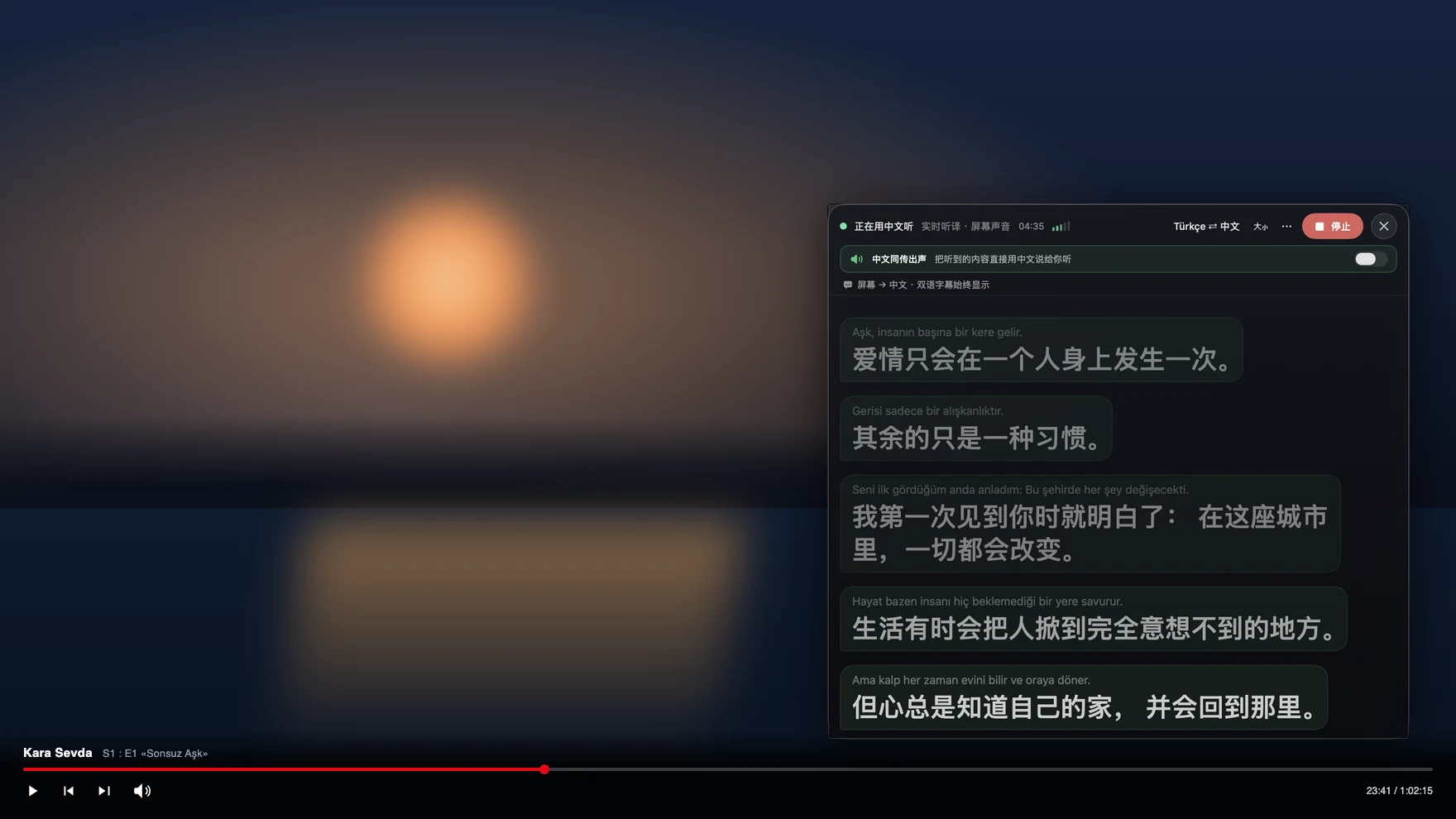
Nhiều người nói cùng lúc, và thường là hơn một thứ tiếng
Kênh thoại là dạng hội thoại khó nhất: không ai chờ lượt, lời chồng lên lời, tiếng game nền bên dưới, và trong phòng thường có hai ba thứ tiếng cùng lúc. Tingdong dịch âm thanh mà kênh đang phát, nên số người nói không thành vấn đề, còn ngôn ngữ thì được nhận theo từng câu trong hơn 60 ngôn ngữ đầu vào chứ không phải đặt một lần — một nhóm nói tiếng Hàn thỉnh thoảng chêm tiếng Anh để gọi mục tiêu vẫn ra phụ đề đúng. Vì nó làm việc ở ngoài Discord, cùng cửa sổ đó còn làm phụ đề cho một buổi phát ai đó đang chia sẻ màn hình, một clip YouTube mở trong kênh và cả lời thoại trong game. Không có gì được thêm vào máy chủ, nên không phải xin quyền cho bot và các thành viên khác chẳng thấy gì.
Câu hỏi thường gặp
Có phải thêm bot vào máy chủ không?
Không. Tingdong là ứng dụng máy tính cho Mac và Windows, làm phụ đề cho âm thanh máy bạn phát ra, nên nó không cần quyền gì trên máy chủ, không xuất hiện trong danh sách thành viên và không đăng gì trong kênh.
Mọi người có nghe được tôi bằng tiếng của họ không?
Có, khi bật Dịch cuộc gọi: chọn “Tingdong Microphone” (bản từ trang web cho Mac) làm thiết bị nhập trong Discord, họ nghe giọng gốc của bạn cùng một giọng đã dịch. Họ không phải cài gì cả.
Nhiều người nói cùng lúc thì sao?
Nó làm phụ đề cho âm thanh của kênh ngay khi phát, nên lời chồng lời và việc đổi ngôn ngữ giữa cuộc trò chuyện đều được xử lý mà không phải cài đặt riêng cho từng người.
Chia sẻ màn hình hay mở video trong kênh có phụ đề không?
Có. Mọi âm thanh máy Mac phát ra đều có phụ đề, nên một buổi phát được chia sẻ, một video mở trong kênh và chính kênh thoại cùng hiện trong một cửa sổ phụ đề.
Thử ngay với video, cuộc họp hay cuộc gọi tiếp theo của bạnThử ngay ở cuộc họp hoặc bài giảng tới
Tải miễn phí cho macOS Tải cho Windows

Dùng thử miễn phí: khoảng 100 phút phụ đề · Không cần đăng ký hay thẻ
Dùng thử miễn phí · Không cần tài khoản hay thẻ
Dùng Android? Tingdong cho Android
Windows 11 (chỉ phụ đề và đọc thành tiếng, không gửi gì vào cuộc gọi)