Translate KakaoTalk voice messages and calls
Updated 2026-09-24
Take the call or meeting on your Mac, and what the other side says appears in your language as they speak. Text in a KakaoTalk chat can be copied into a translator; a voice message or a voice call cannot, because there is no text anywhere in them. On your Mac, Tingdong captions a voice message in your language while it plays, and for a call taken in the KakaoTalk Mac app it interprets both directions — they hear your words as a translated voice (Website version), you read live captions of their replies, with Korean detected automatically.
How to set it up
- 1For voice messages: “Live Listen” with “Screen sound”
Start Tingdong, then press play on the voice message in KakaoTalk on your Mac. Captions appear as it plays, Korean line on top, your language below.
- 2For calls: call from the KakaoTalk Mac app
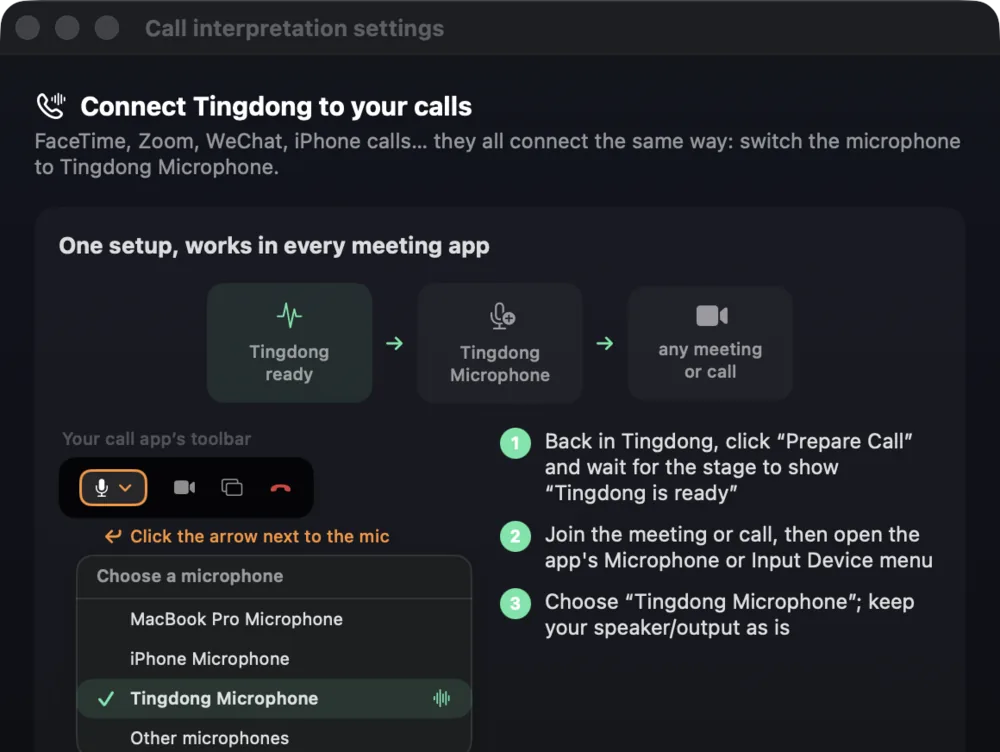
Choose “Call Translation” in Tingdong, then select “Tingdong Microphone” (Website version) as the microphone inside KakaoTalk. That is the entire setup.
- 3Talk, or read along
They hear your voice plus a translated voice (Website version); you read bilingual captions of everything they say. “Live Listen” alone captions the call without touching your mic.
Korean politeness levels are where short translations go wrong
Korean marks the relationship in the verb ending, drops the subject when it is obvious, and shifts register between a colleague, a client and a friend — so a tool that translates one short message at a time, with no memory of who is speaking to whom, flattens all of that into the same blunt sentence. Tingdong translates a continuous stream of speech and keeps context across sentences, which matters most in exactly the places KakaoTalk is used for work: a long voice message from a supplier, a call with a landlord or a school, a family group where three people answer at once. The original Korean line stays on screen above the translation, so a name, a number or an address can always be checked against what was said.
Frequently asked questions
Can it translate a KakaoTalk call on my iPhone?
Not directly — iOS blocks third-party access to call audio for every app. Take the call in the KakaoTalk Mac app and pick “Tingdong Microphone” (Website version), or hand a regular phone call to your Mac over Bluetooth.
Does it handle long voice messages?
Yes. Captions run for as long as the message plays, and you can replay it to re-read a part — the translation is produced from the audio each time.
Do I have to tell it the language is Korean?
No. Korean is detected automatically among 60+ input languages, per phrase, so a chat that mixes Korean and English keeps captioning without any setting.
Does the person on the other side need anything?
Nothing. They use KakaoTalk as usual and, in a call, hear your original voice plus a translated voice (Website version).
Try it on your next video, meeting or callTry it at your next meeting or lecture
Download free for macOS Get it for Windows

Free trial: about 100 minutes of subtitles · No signup or card
Free trial · No account or card
Windows 11 (subtitles and Read aloud only, nothing sent into calls)