Translate WhatsApp voice messages and calls
Updated 2026-09-24
Take the call or meeting on your Mac, and what the other side says appears in your language as they speak. A WhatsApp voice message arrives as audio and nothing else — there is no text to copy, no subtitle to translate, and forwarding it to a friend for a summary is the usual workaround. On your Mac, Tingdong captions the voice message in your language while it plays, and for a call taken in WhatsApp Desktop it can interpret both directions (Website version): they hear your words as a translated voice, you read live captions of their replies.
How to set it up
- 1For voice messages: “Live Listen” with “Screen sound”
Press Start in Tingdong, then press play on the voice message in WhatsApp Desktop or in the web client. The captions appear as it plays — original line on top, your language below.
- 2For calls: take the call in WhatsApp Desktop on the Mac
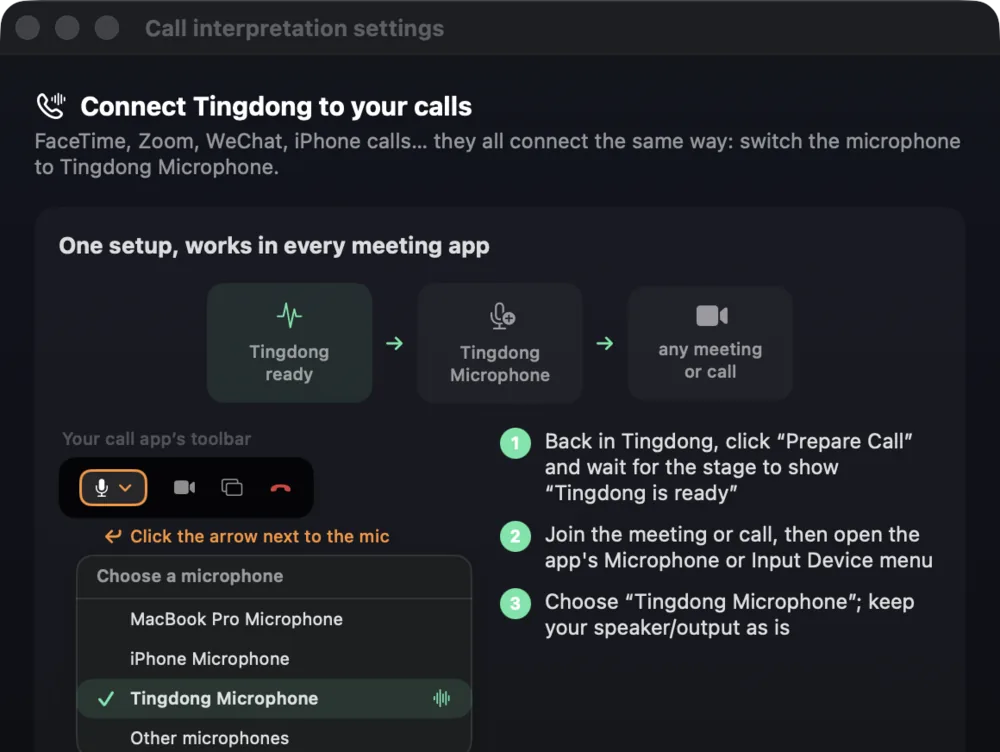
In Tingdong pick “Call Translation”, then choose “Tingdong Microphone” (Website version) as the microphone in WhatsApp’s settings. That one menu choice is the whole setup.
- 3Talk, or just read along
With Call Translation on, they hear your voice plus a translated voice and you read bilingual captions (Website version). If you only want to understand them, “Live Listen” captions the call without touching your mic.
Why a voice message has no captions to begin with
Chat apps translate text because text is already text. A voice message is a recording, so there is nothing for a translation feature to operate on unless the app first transcribes it — and a transcript, where one exists, is in the language that was spoken, which is not the problem you have. Tingdong takes the audio as it plays on your Mac and produces the translation directly, which means it does not matter whether the message is ten seconds or four minutes, whether it is a supplier explaining a delay or family talking over background noise. The same route covers a group voice note, an audio file someone sent, and a voice message you play back for the third time to catch a number.
Frequently asked questions
Can it translate a WhatsApp call on my iPhone?
Not directly — no third-party app can reach call audio on iOS. Take the call in WhatsApp Desktop on your Mac and pick “Tingdong Microphone” (Website version), or hand a regular phone call from the iPhone to your Mac over Bluetooth.
Does the other person have to install anything?
Nothing. They use WhatsApp normally. In a call they hear your original voice plus a translated voice (Website version).
Does it work with voice messages in a group chat?
Yes. Any voice message you press play on gets captioned, in a one-to-one chat or a group, and language is detected automatically among 60+ inputs, per phrase.
Can I replay a voice message and caption it again?
Yes. The captions are produced from the audio each time it plays, so you can replay a message as often as you like to check a name, a date or an amount.
Is the message uploaded anywhere?
The audio is sent live for recognition as it plays and is not stored, and nothing is posted back to WhatsApp — no bot joins the chat and nothing appears on the other person’s side.
Try it on your next video, meeting or callTry it at your next meeting or lecture
Download free for macOS Get it for Windows

Free trial: about 100 minutes of subtitles · No signup or card
Free trial · No account or card
Windows 11 (subtitles and Read aloud only, nothing sent into calls)