Real-time Arabic translation on your Mac
Updated 2026-09-24
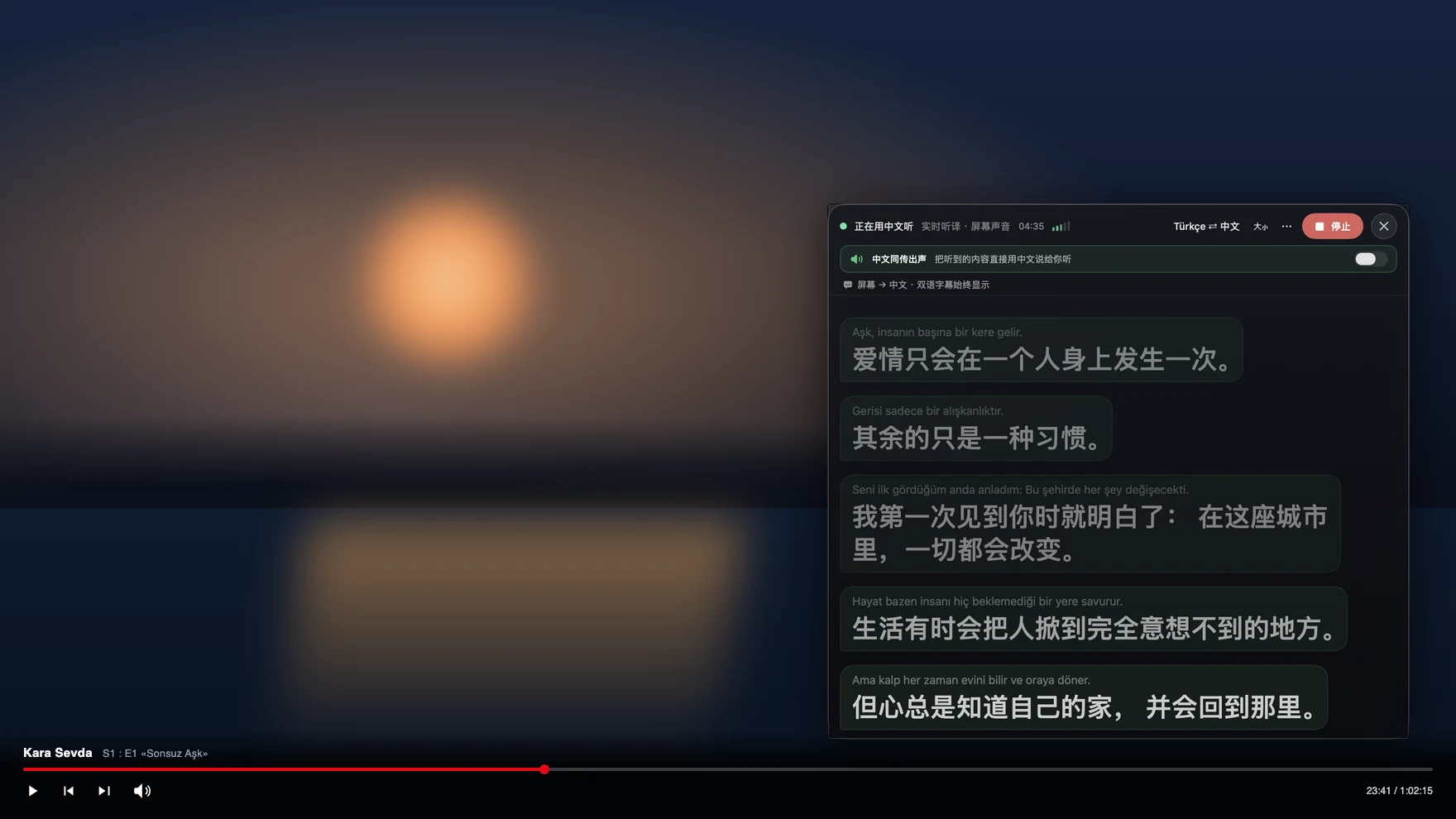
Press Start, play it, and the subtitles appear as it is spoken — original, translated or both. Arabic reaches an English speaker as a news broadcast nobody subtitles, a series or a khutbah on YouTube, a work call with a team in Dubai or Cairo, and the family video call where everyone talks at once. Run Tingdong on your Mac: it listens to whatever is playing, detects Arabic automatically, and floats English captions over it while the sentence is still being spoken, with the Arabic line kept above the translation.
How to set it up
- 1Open Tingdong and choose “Live Listen”
Set the source to “Screen sound” so it captions the broadcast or the meeting rather than the room. Arabic is detected, not selected.
- 2Press Start
Captions float over the player or the call window: Arabic on top, English below, updating before the sentence ends. You can have the English read aloud instead of reading it.
- 3For a call, switch to “Call Translation”
Choose Tingdong Microphone (Website version) in the mic menu of FaceTime, Zoom, WhatsApp for Mac or Telegram, or hand an iPhone call to the Mac over Bluetooth. You speak English, they hear Arabic.
The distance between news Arabic and the Arabic people speak
The Arabic taught in classes and read on the news is not what a family speaks in Cairo, Beirut, Casablanca or the Gulf — vocabulary, pronunciation and even sentence rhythm differ enough that a learner who follows a bulletin can be lost in a kitchen conversation. Short vowels are also absent from ordinary writing, so a system that leans on text conventions has less to go on than it looks. Tingdong works from continuous speech and keeps context across sentences, which is what carries a dialect conversation further than a line-by-line subtitle translator gets. Language is detected per phrase, so the very common pattern of an Arabic sentence with English or French technical words inside it does not need a setting. Captions are bilingual: the spoken Arabic stays above your English, so you can check a word instead of trusting it blindly.
Frequently asked questions
Does it work with Arabic dialects, or only Modern Standard Arabic?
Both are detected as Arabic automatically. Broadcast and meeting speech translates most reliably; strongly regional dialect is harder for any machine translation, which is why the original line is always shown above the translation.
Can it caption an Arabic news stream or a YouTube video with no subtitles?
Yes. It listens to the audio your Mac plays, so a live news channel, a YouTube upload, Netflix or a local file all get the same floating captions — no subtitle track has to exist for it to work.
Can I take a call with family or an office in the Gulf?
Yes. Hand the iPhone call to your Mac over Bluetooth, or choose Tingdong Microphone (Website version) in a desktop calling app. They hear your voice plus an Arabic translated voice, install nothing, and you read their replies as English captions.
Does it work when speakers mix Arabic with English or French?
Yes. The language is detected per phrase among 60+ inputs rather than fixed for the session, so a meeting that slides between Arabic and English is captioned continuously without a switch.
Is anything uploaded or recorded?
The audio is sent live for recognition and is not stored, and the transcript stays on your Mac; no bot joins your meeting, and the video itself is never uploaded — only the sound your Mac already plays is used.
Try it on your next video, meeting or callTry it at your next meeting or lecture
Download free for macOS Get it for Windows

Free trial: about 100 minutes of subtitles · No signup or card
Free trial · No account or card
Windows 11 (subtitles and Read aloud only, nothing sent into calls)