Real-time Russian translation on your Mac
Updated 2026-09-24
Press Start, play it, and the subtitles appear as it is spoken — original, translated or both. Russian turns up for English speakers in places nobody subtitles: a long YouTube interview, a Telegram voice message from a relative, a developer on the team who explains something complicated faster in Russian than in English, a grandmother on a video call. Tingdong runs on your Mac, listens to whatever is playing, detects Russian by itself, and floats English captions over it while the sentence is still being spoken.
How to set it up
- 1Open Tingdong and choose “Live Listen”
Set the source to “Screen sound” so it captions the video or the call audio rather than the room. You never select Russian — it is detected.
- 2Press Start
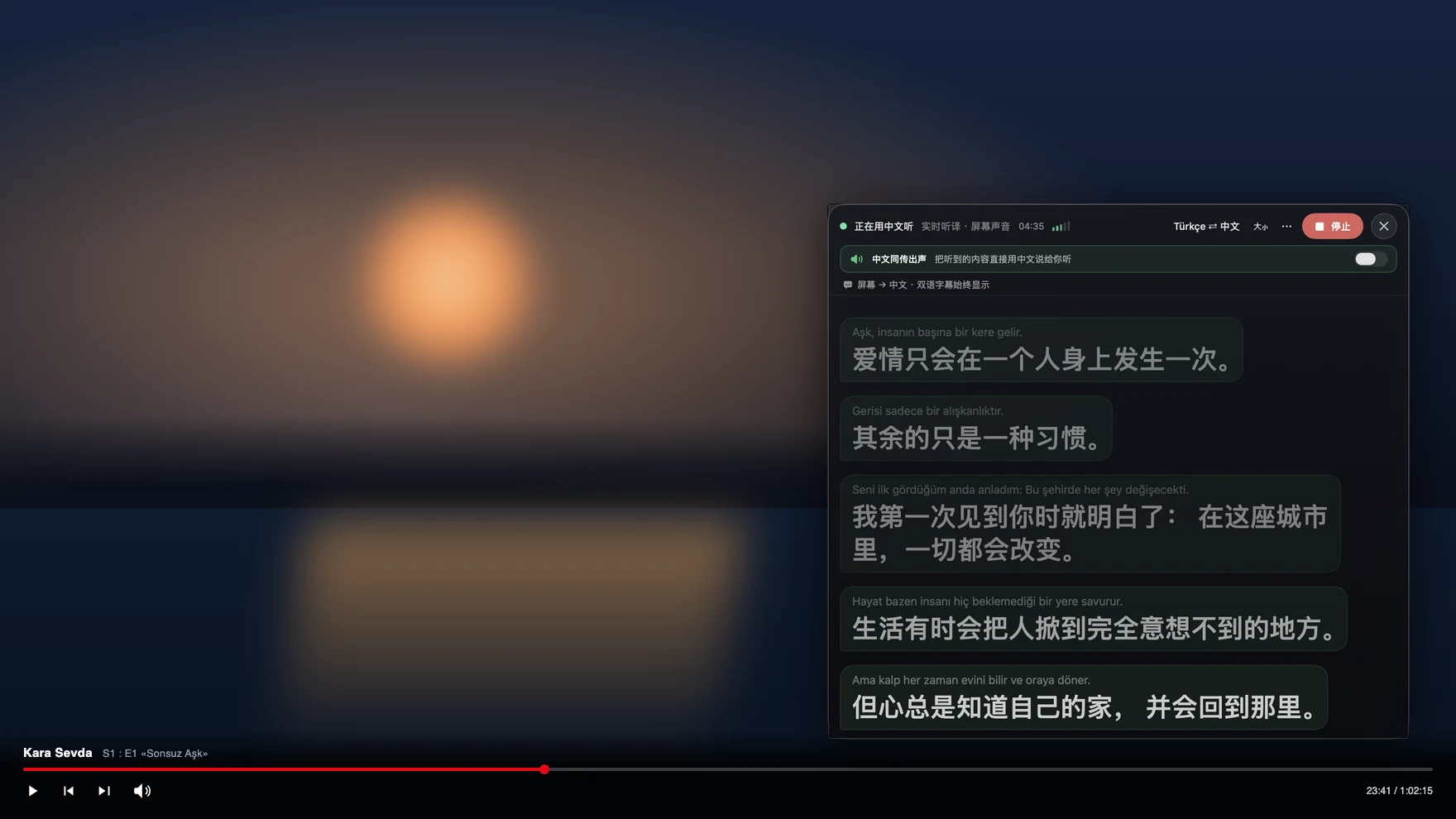
Captions float over the player or the meeting window: the Russian line on top, English below, updating mid-sentence. The translation can also be read aloud to you.
- 3For a call, switch to “Call Translation”
Choose Tingdong Microphone (Website version) in the mic menu of FaceTime, Zoom, Telegram or Discord for Mac, or hand an iPhone call to the Mac over Bluetooth. You speak English, they hear Russian.
Free word order means the meaning arrives late
Russian marks who did what to whom with case endings rather than with position, so the same six words can be arranged several ways and the ending of one word decides which reading is correct. Aspect adds a second late decision: whether an action was completed or was going on is a property of the verb, not of an auxiliary at the front of the clause. Both facts punish a translator that sees one finished line with no memory of the previous one — it guesses early and cannot revise. Tingdong translates a continuous stream and keeps context across sentences, which is why a lecture or a long call stays coherent rather than drifting. Names and place names spoken in Russian and then repeated in English are handled without a switch, because the language is detected per phrase among 60+ inputs.
Frequently asked questions
Does it caption Russian YouTube and streams with no English subtitles?
Yes. It listens to the audio your Mac plays, so YouTube, Twitch, Netflix or a local file in VLC all work the same way, including live broadcasts that have no subtitle track at all.
Can it translate Telegram voice messages?
Play them in Telegram for Mac with Live Listen running and the captions appear as they play — voice messages carry no subtitles of any kind, which is why people who never caption anything else use it for exactly this.
Can I call a relative who speaks only Russian?
Yes. Hand the iPhone call to your Mac over Bluetooth, or choose Tingdong Microphone (Website version) in a desktop calling app. They hear your voice plus a Russian translated voice, and there is nothing for them to install or learn.
How well does it handle technical or work speech?
Meeting and dialogue speech translates well because context is kept across sentences. Fast jokes, songs and heavy regional speech are hard for any machine translation, and the original Russian line stays above the translation so you can always check.
Do I need to choose Russian somewhere in the settings?
No. Russian is auto-detected per phrase among 60+ input languages, so a meeting that keeps flipping between Russian and English needs no setting and no restart.
Try it on your next video, meeting or callTry it at your next meeting or lecture
Download free for macOS Get it for Windows

Free trial: about 100 minutes of subtitles · No signup or card
Free trial · No account or card
Windows 11 (subtitles and Read aloud only, nothing sent into calls)