Real-time Dutch translation on your Mac
Updated 2026-09-24
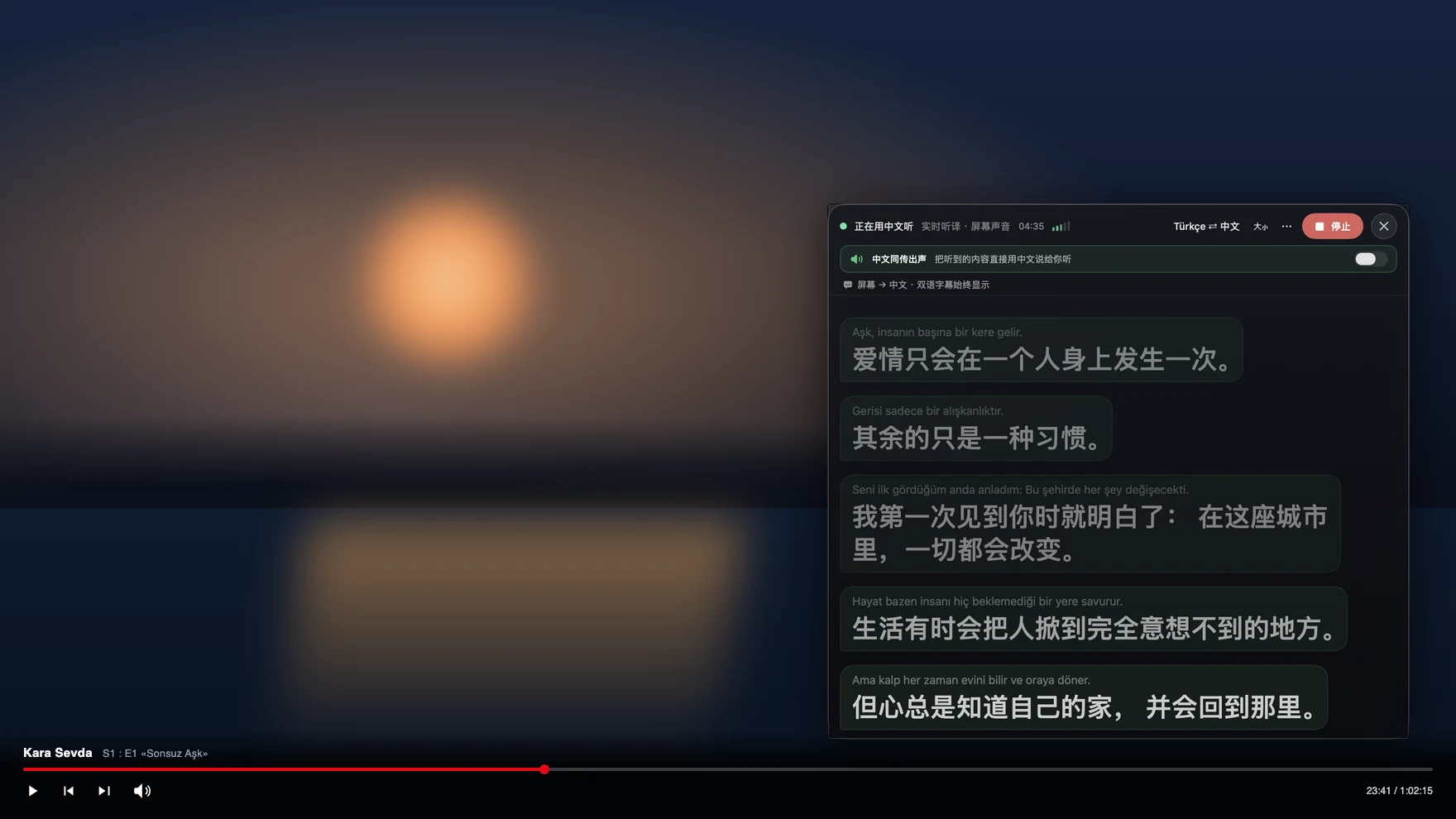
Press Start, play it, and the subtitles appear as it is spoken — original, translated or both. Everyone in the Netherlands speaks English — until the meeting is internal, the school sends a voice message, the municipality calls back, or the NPO documentary you actually wanted to watch has no English subtitles. That is the expat’s real Dutch problem: not daily life, but the moments where switching to English is not on offer. Tingdong listens to whatever your Mac plays, detects Dutch automatically, and floats English captions over it while the sentence is still being spoken.
How to set it up
- 1Open Tingdong and choose “Live Listen”
Set the source to “Screen sound” so it captions the meeting or the programme rather than the room. Dutch is detected, not selected.
- 2Press Start
Captions float over the Teams, Zoom or player window: the Dutch line on top, English below, updating before the sentence finishes. The English can also be read aloud.
- 3For a call, switch to “Call Translation”
Choose Tingdong Microphone (Website version) in the mic menu of Teams, Zoom, FaceTime or WhatsApp for Mac, or hand an iPhone call to the Mac over Bluetooth. You speak English, they hear Dutch.
The meeting nobody switches out of
Dutch colleagues will switch to English for you in a one-to-one conversation and rarely in a full internal meeting, where the pace, the jokes and the decisions stay in Dutch. Following it unaided is harder than the language looks on paper: the verb is pushed to the end of subordinate clauses and stacks up there, separable prefixes land far from their stem, and Flemish and regional pronunciation differ more than the shared spelling suggests. Reading captions quietly on your own screen means you can stay in the meeting instead of asking everyone to change language for you, and it means the recording you missed is watchable afterwards. Detection runs per phrase among 60+ inputs, which suits Dutch business speech precisely because it is stuffed with English terms.
Frequently asked questions
Can I follow an internal meeting in Dutch without asking people to switch?
Yes. Live Listen captions the sound your Mac plays, so no bot joins the call, your microphone is untouched, and nothing shows in the participant list — you read along while the meeting stays in Dutch.
Does it work on NPO, Netflix and Dutch YouTube?
Yes. Captions come from the audio, not from a subtitle track, so any player or site works, including live broadcasts and protected players where the picture cannot be captured at all.
Can it handle Flemish?
Flemish is detected as Dutch automatically. Clear speech translates most reliably; strong regional pronunciation is harder for any machine translation, and the original line stays above the translation so you can check a word.
Can I call the gemeente, a school or a landlord?
Yes. Hand the iPhone call to your Mac over Bluetooth, or choose Tingdong Microphone (Website version) in a desktop calling app. They hear your voice plus a Dutch translated voice, install nothing, and you read their replies as English captions.
How does this compare with Apple’s built-in live captions?
Apple’s feature is free and on-device and covers a short list of languages. This one auto-detects 60+ input languages, keeps simultaneous pacing, works on meetings, media and calls alike, and can speak your side back in Dutch — see the comparison.
Try it on your next video, meeting or callTry it at your next meeting or lecture
Download free for macOS Get it for Windows

Free trial: about 100 minutes of subtitles · No signup or card
Free trial · No account or card
Windows 11 (subtitles and Read aloud only, nothing sent into calls)